Manage users and permissions
Control who on your team can see and do what in Avantly. See Users & permissions for how the permission model works.
-
Go to Settings → Users and select Add User.
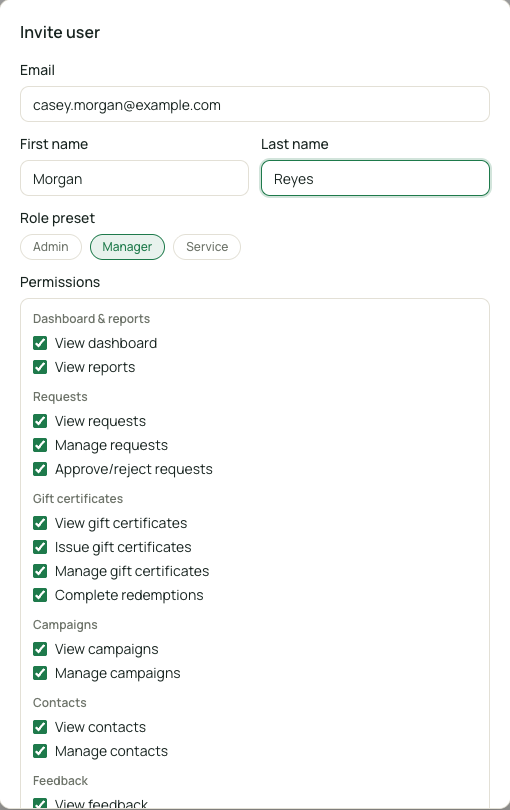
Adding a new user -
Enter their email address.
-
Choose a preset:
- Admin — full access to everything on the account
- Manager — broad access, but not settings, locations, or API keys
- Service — front-line staff access: redemptions, issuing certificates, deciding on requests
-
Or skip the preset and assign permissions individually for finer control over dashboard, requests, contacts, reports, campaigns, locations, settings, API keys, redemptions, and certificates.
-
Save. The user receives access the next time they log in.
Changing or removing access
Section titled “Changing or removing access”Open the user from the Users list to change their permissions or preset, or to remove their access entirely.
Multi-location accounts
Section titled “Multi-location accounts”If your account has child locations, permissions granted at the parent level can extend down to those locations automatically — you don’t need to add the same user separately at each site.