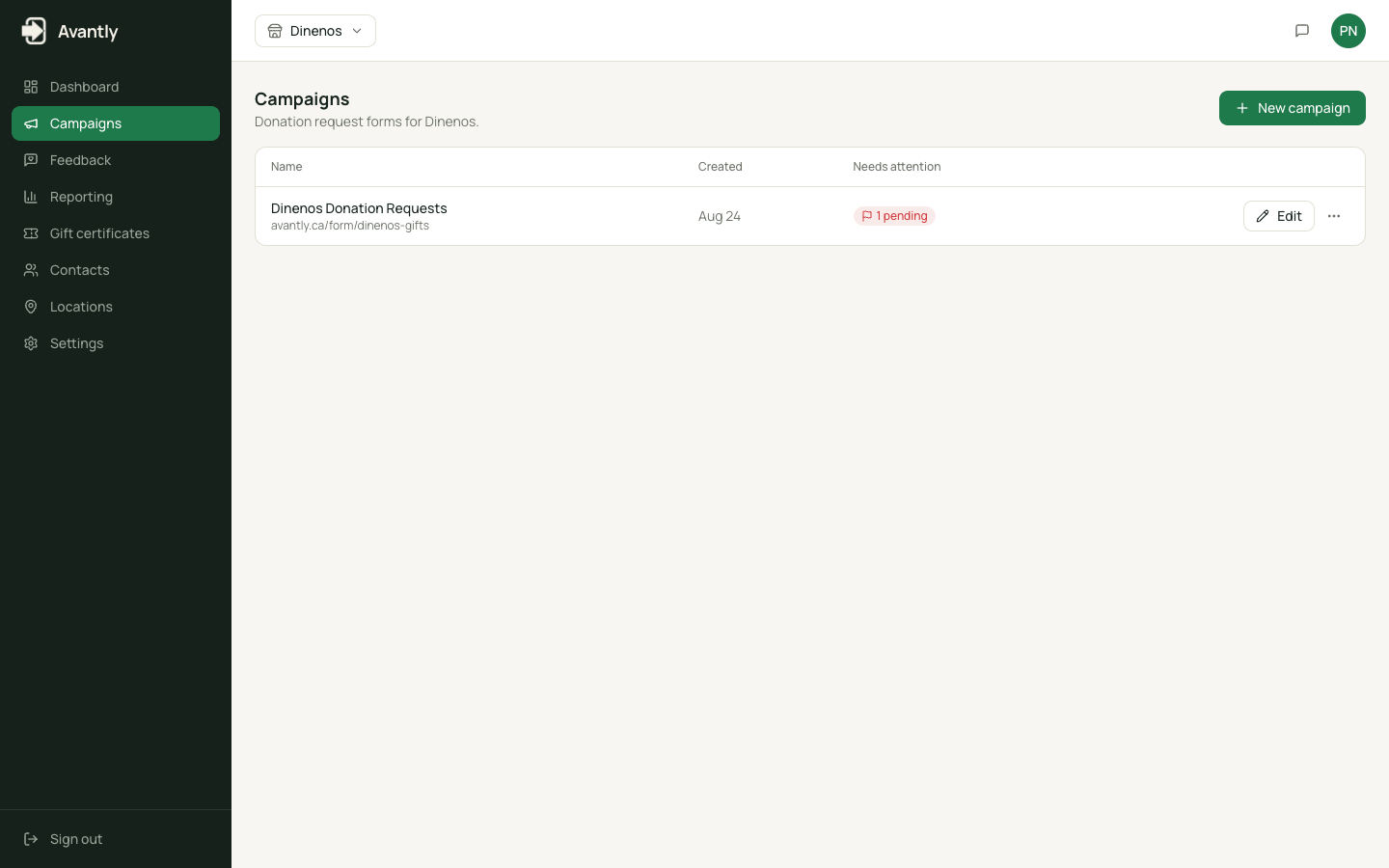
Campaigns
A campaign is the configuration behind one donation request form. Everything a customer sees and everything staff can do with the requests it generates is controlled by campaign settings.
What a campaign controls
Section titled “What a campaign controls”| Area | What it configures |
|---|---|
| Campaign information | Name, form URL/slug, notification email, consent checkbox text |
| Form | The donation request form itself — a dynamic list of fields, plus logo and live preview |
| Flow | What happens on submission, including the auto-approve rule and certificate defaults |
| Emails | Subject and body text for received / approved / denied notifications, terms & conditions |
| Form complete | The thank-you message shown after a customer submits |
| Look & Feel | Logo, colors, and custom CSS for this campaign’s form (see Branding) |
The auto-approve rule
Section titled “The auto-approve rule”Each campaign has a single Submit Action setting that decides what happens the moment a form is submitted:
- Manual Review — the submission goes into the queue as a donation request for staff to review.
- Auto Approve — a certificate is generated immediately, for every submission.
- Auto Reject — every submission is automatically declined.
This is an all-or-nothing switch per campaign, not a conditional rule based on amount or content. See Configure campaign settings for how to change it.
Other rules a campaign can enforce
Section titled “Other rules a campaign can enforce”- Enforcing predefined gift certificate amounts, shown as a dropdown instead of a free-text field.
- Allowing certificates issued from this campaign to be redeemed multiple times (drawing down a balance) instead of only once.
- A default certificate expiration, in days.
- Unique-email enforcement, to block repeat submissions from the same address.