Create a campaign
This guide walks through creating a new campaign — the form people use to request a gift certificate.
-
From the dashboard, open Campaigns and select Create New Campaign.
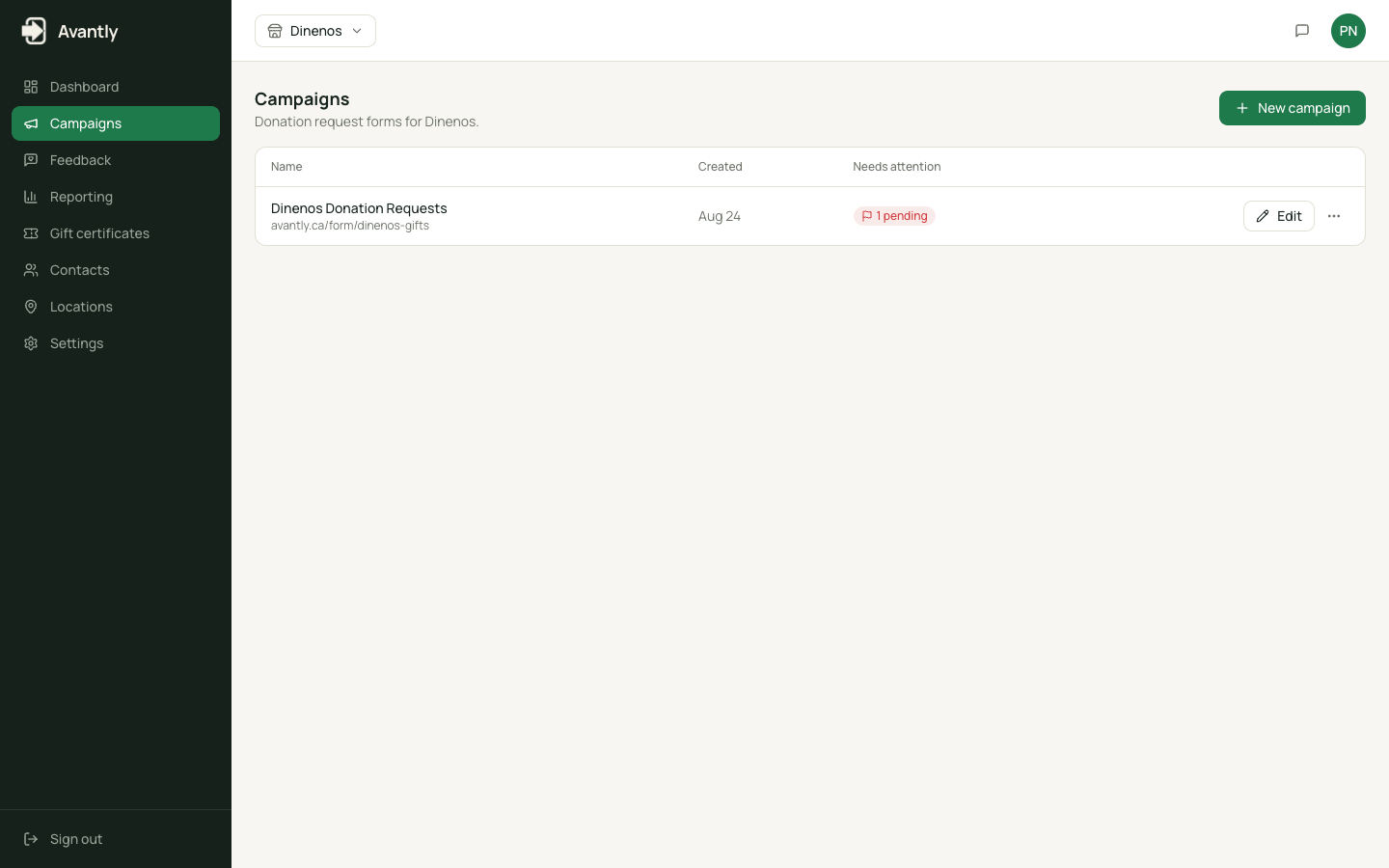
Starting a new campaign -
Give it a name and select Create. Avantly creates the campaign and takes you to its settings, organized into sections you can expand one at a time.
-
In Campaign Information, set the form URL/slug that will appear in the public link, a notification email for new submissions, and whether to allow only one request per email address.
-
Build the Form: add the fields you want requesters to fill in, and use the live preview to check how it looks — including your logo once you’ve set it up in Look & Feel.
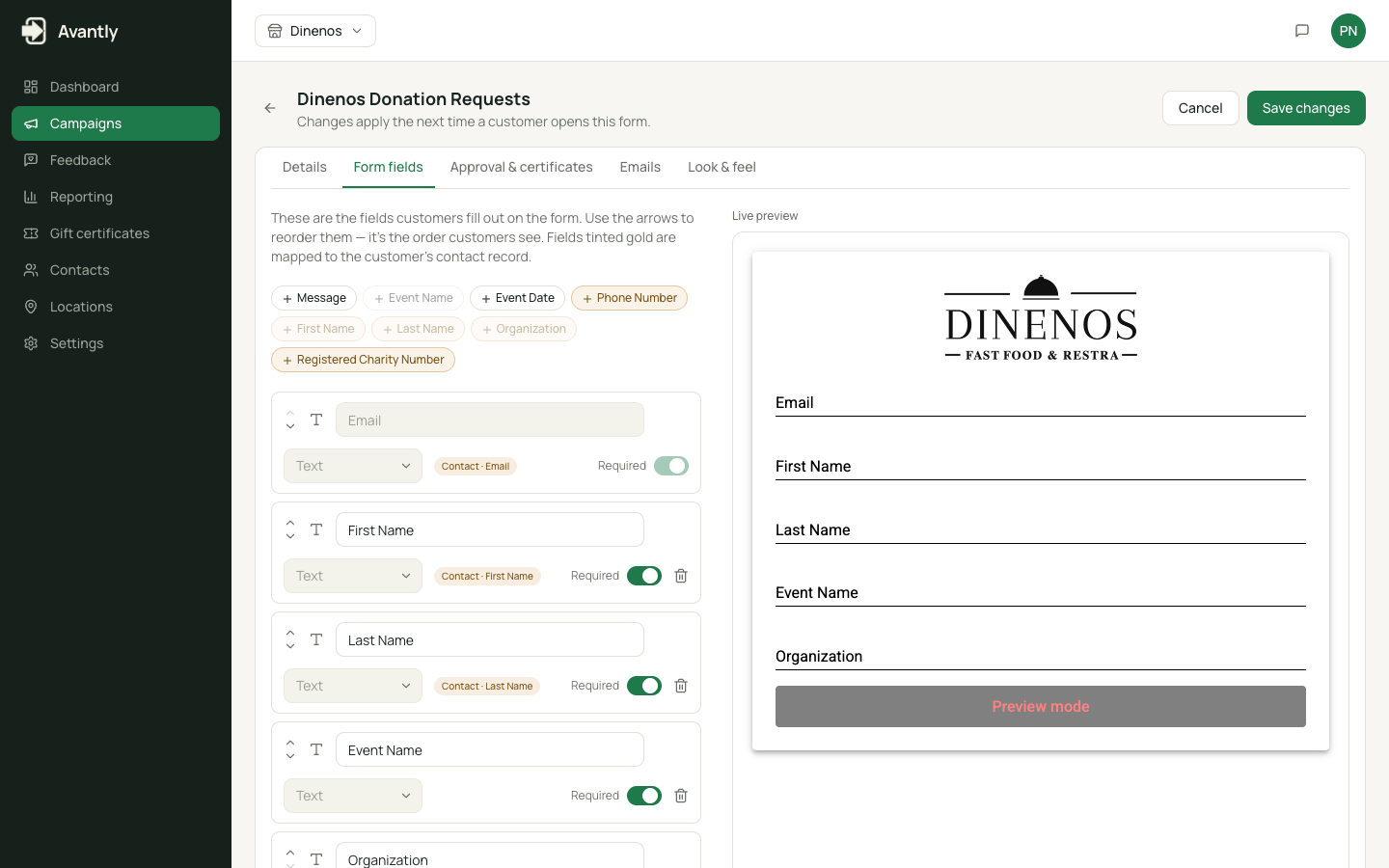
Building the donation request form -
Write the Form Complete message shown to people after they submit.
-
Configure the Flow: decide the auto-approve rule (Manual Review, Auto Approve, or Auto Reject) and set certificate defaults like the default expiration.
-
Set up Emails: subject lines and body text for the received, approved, and denied notifications, plus any terms & conditions text.
-
Save. The campaign is now live at its public URL.
Next steps
Section titled “Next steps”- Configure campaign settings in more detail
- Customize your branding for this campaign
- Embed the donation form on your website